
Disapproved products in Google Merchant Center cannot show in Shopping ads, Performance Max or free listings. If your best sellers are disapproved, your campaigns can quietly lose sales without you noticing, because Google simply stops showing those products.
The good news is that most disapprovals come from a short list of causes, and nearly all of them can be fixed. This guide shows you where to find the issues, what the common ones mean, how to fix each one and how to stop them coming back.
What you need before you start
- Admin or standard access to your Merchant Center account.
- Access to where your product data comes from: your Shopify or WooCommerce admin, the Google app or plugin, or your feed file.
- Access to your website to change policy pages, product pages or settings.
Step 1: Find out what is wrong
Merchant Center separates problems into two levels, and it matters which one you have.
- Account-level issues affect every product. They show as a banner at the top of your account. Some start as warnings with a deadline to fix; others, such as misrepresentation, can lead to a suspension that stops all products showing.
- Product-level issues affect individual products. They are either warnings (the product still shows, but may perform worse) or disapprovals (the product does not show).
To see product issues, go to Products and open the tab for products that need attention. You can filter by issue type and impact, and click an issue to see which products it affects and Google’s suggested fix. By default Merchant Center highlights the higher-impact issues first. Start with whichever issue affects the most products, or your best sellers.
Always fix account-level issues first. No amount of product fixes will help while your account is suspended or under review.
Step 2: Fix the most common causes
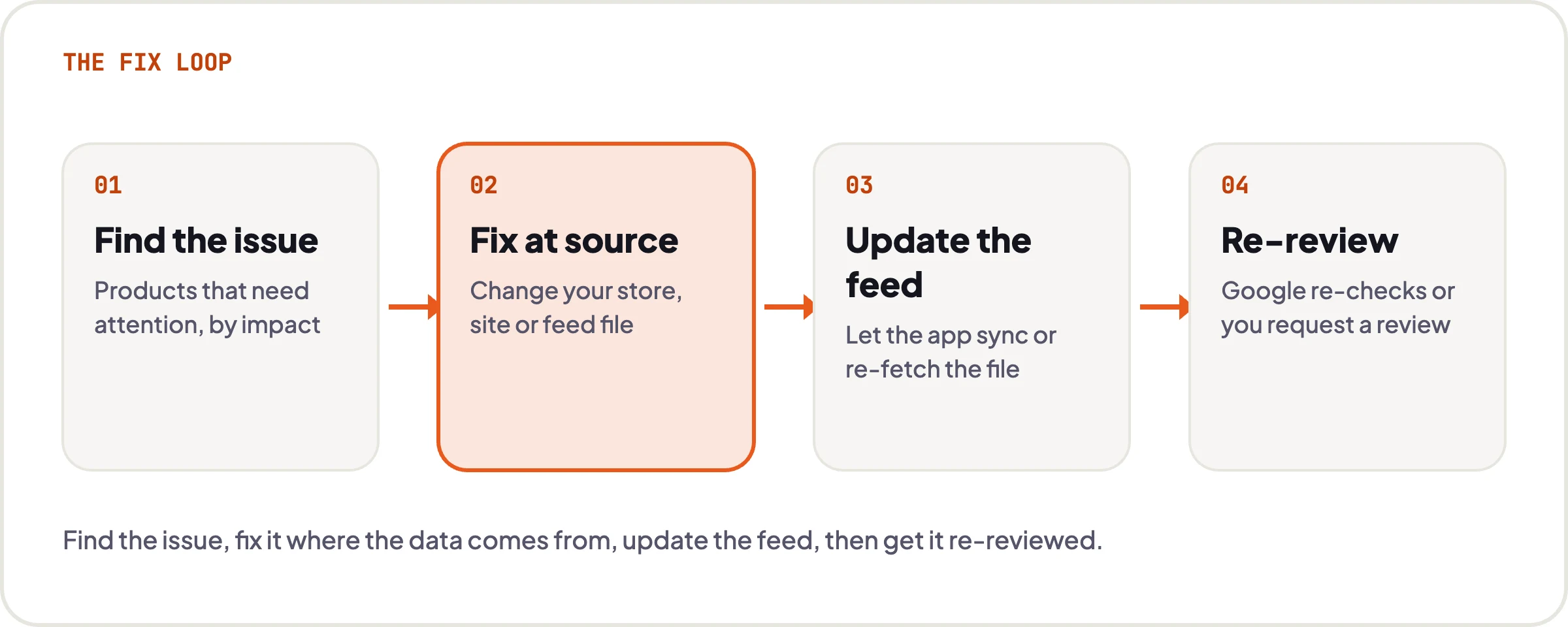
Whatever the issue, the rule is the same: fix it at the source. If your products come from Shopify or WooCommerce, change the product in your store and let it sync. If you only edit the product inside Merchant Center, the next sync can overwrite your change and the disapproval returns.
Price or availability mismatch
Google compares the price and stock status in your product data with what it finds on your product page. If they differ, the product is disapproved. Common causes:
- Your feed updates once a day, but prices or stock change more often.
- A sale price shows on the site but not in the feed, or the other way round.
- Prices on the page exclude VAT. For UK shoppers, prices must include VAT.
- The page shows a different price depending on the variant selected, and the feed links to the wrong variant.
To fix it, make sure the feed updates whenever products change (the Shopify and WooCommerce integrations do this automatically), and check your product pages include accurate structured data for price and availability. Merchant Center also offers automatic item updates, which let Google correct price and availability from your site. It is worth switching on, but treat it as a safety net, not the fix.
Missing or incorrect product identifiers
Google uses the GTIN (the barcode number, such as an EAN), brand and MPN to match your product to its catalogue. A missing GTIN on a branded product usually limits performance rather than disapproving it, but an invalid or incorrect GTIN can cause a disapproval.
- Add the manufacturer’s barcode to each variant in your store. In Shopify this is the Barcode field.
- Never make up a GTIN or reuse one across different products.
- If you make your own products and they have no barcode, provide brand and MPN where you have them. If a product genuinely has no identifiers, tell Google so in your product data rather than leaving the fields empty.
Image issues
Product images get rejected for reasons such as:
- Promotional overlays, text, watermarks or borders on the main image.
- Placeholder or generic images instead of the actual product.
- Images that are too small (at least 100 x 100 pixels, or 250 x 250 for clothing) or that Google cannot fetch.
Use a clean main image of the product on a plain background, and put lifestyle or promotional images in the additional image slots. Merchant Center can also apply automatic image improvements to remove some overlays, but uploading a clean image is more reliable.
Landing page errors
If Google cannot load the product page, it disapproves the product. Check for:
- Links that return a 404 or redirect to the homepage, often after deleting or renaming products.
- A store that is password-protected or in maintenance mode.
- A robots.txt file or security tool that blocks Google’s crawler.
- Pages that only work in certain countries, or that force a pop-up before showing the product.
Open the product link from your feed in a private browser window. If you cannot see the product and its price straight away, Google probably cannot either.
Missing shipping information
Products need delivery costs for every country you target. If you have not set up delivery for the UK, or a product falls outside your rates (for example, a weight band you have not covered), it can be disapproved. Go to Settings, then Shipping and returns, and make sure every product is covered. Your costs must match checkout. Our guide on how to set up Google Merchant Center covers delivery settings in detail.
Misrepresentation and account suspension
Misrepresentation is an account-level issue. Google suspends accounts when it is not confident a shopper can trust the store. The details of each case vary, and Google does not always say exactly what triggered it, but the basics it looks for are clear:
- Contact information: a real business name, a physical address or clear contact page, an email address and ideally a phone number, all consistent with your Merchant Center business info.
- Returns and refunds policy: a clear, easy-to-find page stating the return window, condition of items and how refunds work.
- Secure checkout: the whole site served over HTTPS, with recognised payment methods.
- Honest offers: no fake countdown timers, unrealistic discounts, misleading claims or missing information about costs such as delivery.
- Complete pages: no placeholder text, broken links or “coming soon” sections.
Fix everything before you ask for a review. Reviews for this kind of issue can take several days, and there may be a limit on how many times you can request one.
Step 3: Update your feed and request a review
Once the source is fixed, make sure the new data reaches Merchant Center:
- Shopify or WooCommerce apps: changes sync automatically. You can usually see the sync status inside the app.
- Feed file or Google Sheet: re-fetch or re-upload the file from the data source in Merchant Center.
For many product issues, Google re-checks the product automatically when updated data arrives. Where the issue page offers the option, you can request a review, or appeal if you think the decision is wrong. Product reviews often complete within a few days. Account-level reviews can take up to around a week.
Do not request a review until you are sure the fix is live. Repeated failed reviews can slow things down, and for some account issues the number of reviews you can request is limited.
Step 4: Stop it happening again
- Check the products needing attention in Merchant Center every week, or at least after big changes to your catalogue.
- Use one product source only, and make changes there.
- When you remove a product, take it out of the feed rather than leaving a broken link.
- Run sales through your store’s built-in sale price, so the feed and site stay in sync.
- Add barcodes as part of your process for adding new products.
- Review your policy pages whenever you change delivery or returns.
Once your products are approved, check how they are set up in your campaigns. Our guide to creating a Google Shopping campaign shows how to structure them.
Common mistakes to avoid
- Fixing products in Merchant Center only, so the next sync undoes the change.
- Requesting a review before the fix is actually live on the site.
- Ignoring warnings until they become disapprovals or a suspension.
- Using sale banners or text on main product images.
- Showing prices without VAT to UK shoppers.
- Making up GTINs to clear identifier warnings.
- Opening a new Merchant Center account to get around a suspension. This can make things worse.
Let us do it for you
Products still disapproved?
We fix Merchant Center issues for UK ecommerce brands, from feed errors to suspensions, then build and manage the Google Ads campaigns that sell those products. Flat monthly fees, no long contracts, and you own every account.