
Google Shopping ads show your products, with an image, price and your store name, right at the top of Google when someone searches for what you sell. For most online stores they are the most important Google Ads campaign type.
This guide shows you how to set up a Google Shopping campaign from scratch, including the parts most guides skip: your product feed and conversion tracking.
What you need before you start
- A Google Merchant Center account with your website verified and claimed.
- Your products in Merchant Center, approved and free of major errors.
- A Google Ads account with billing set up.
- Conversion tracking, so Google knows which clicks turn into sales.
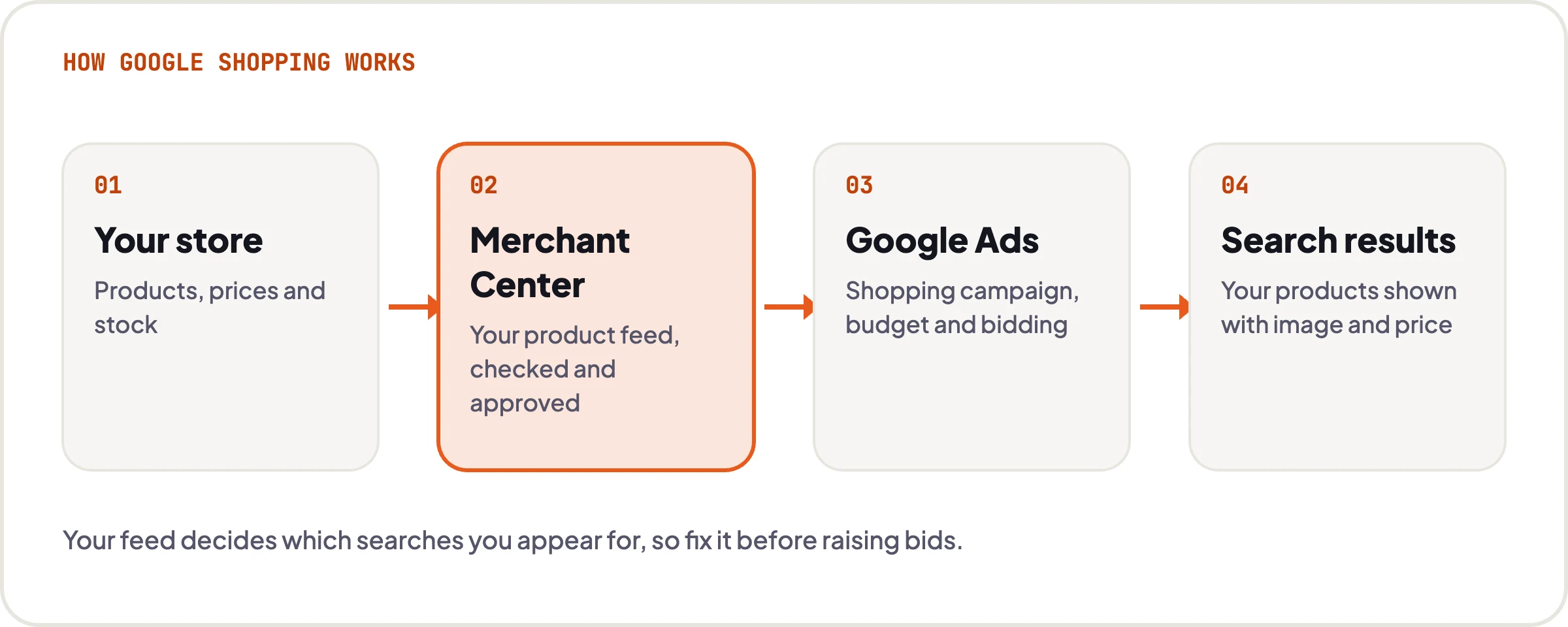
Step 1: Set up Merchant Center and add your products
- Create a Merchant Center account at merchants.google.com using the same Google account you will use for Google Ads.
- Add your business details, delivery settings and returns policy. Missing delivery or returns information is a common reason products are disapproved.
- Verify and claim your website.
- Add your products. The easiest way is through your platform:
- Shopify: install the Google & YouTube app and connect your Merchant Center account.
- WooCommerce: install the Google for WooCommerce extension and sync your products.
Step 2: Fix your product feed
Google decides which searches to show your products for largely from your feed. A weak feed limits your reach no matter how much you spend. In Merchant Center, check the product diagnostics and fix:
- Disapproved products and any account-level warnings.
- Product titles: put the words people search for first, for example brand, product type, material, colour and size, rather than an internal name.
- Missing attributes such as GTIN (barcode), brand, colour and size.
- Images: clear product photos on a plain background, without added text or watermarks.
- Prices and stock that match your website exactly.
Step 3: Link Merchant Center to Google Ads
In Merchant Center, go to the settings for linked accounts, choose Google Ads, and send a link request to your Google Ads account. Then approve the request in Google Ads. Note that once a Shopping campaign is created, you cannot change which Merchant Center account it uses.
Step 4: Set up conversion tracking
Before spending money, make sure purchases and their value are tracked in Google Ads. On Shopify and WooCommerce, the official Google apps above can set this up. In Google Ads, go to Goals → Conversions and check that a Purchase conversion is recording sales with the correct value. Turning on enhanced conversions helps recover sales that cookies alone miss.
If you have UK or EU visitors, make sure your cookie banner passes consent signals to Google (consent mode). Without it, Google’s measurement and remarketing will not work fully.
Step 5: Create your Shopping campaign
- In Google Ads, click the + button and choose New campaign.
- Choose the Sales objective.
- Choose Shopping as the campaign type. (Google will also offer Performance Max, covered below.)
- Select your Merchant Center account and give the campaign a clear name.
- Bidding: while you have little conversion data, a simple strategy such as Maximise clicks or Manual CPC with a sensible bid helps gather data. Once you have consistent sales, move to a strategy that bids for conversion value, such as Target ROAS.
- Budget: set a daily budget you can sustain for at least a few weeks.
- Locations: target the countries you deliver to, for example the United Kingdom.
- Networks: consider unticking Google search partners at first, so you can see how Google Search alone performs.
- Create your first ad group. You can start with all products and split them later.
- Review the summary and publish.
Step 6: Structure and optimise
- Split by performance and margin. Once you have data, separate best-sellers and high-margin products into their own campaigns or product groups so they get the budget.
- Check search terms weekly and add negative keywords for irrelevant searches.
- Keep improving the feed. Better titles and attributes are often the biggest win.
- Judge on ROAS and cost per sale, not clicks.
Standard Shopping or Performance Max?
Performance Max uses your feed to run ads across Search, Shopping, YouTube, Display and Gmail, with Google’s automation deciding where to spend. It can perform very well, but it needs good conversion data and gives you less control and visibility.
Standard Shopping gives you more control and clearer data, which makes it a good place to start or to run alongside Performance Max. Many stores use both: Performance Max for scale, Standard Shopping for control over key products.
Common mistakes to avoid
- Launching with no conversion tracking, or tracking without order values.
- Ignoring Merchant Center errors and weak product titles.
- Putting every product in one campaign with one bid forever.
- Switching to Target ROAS before there is enough data.
- Never checking search terms.
Let us do it for you
Want your Shopping campaigns set up properly?
We set up and manage Google Shopping and Performance Max for UK ecommerce brands, including Merchant Center, feed optimisation and conversion tracking. Flat monthly fees, no long contracts, and you own every account.